See QuickPunch run a punch list, end to end
A 75-second walkthrough — from the first deficiency you log on site to the photo-backed close-out record.
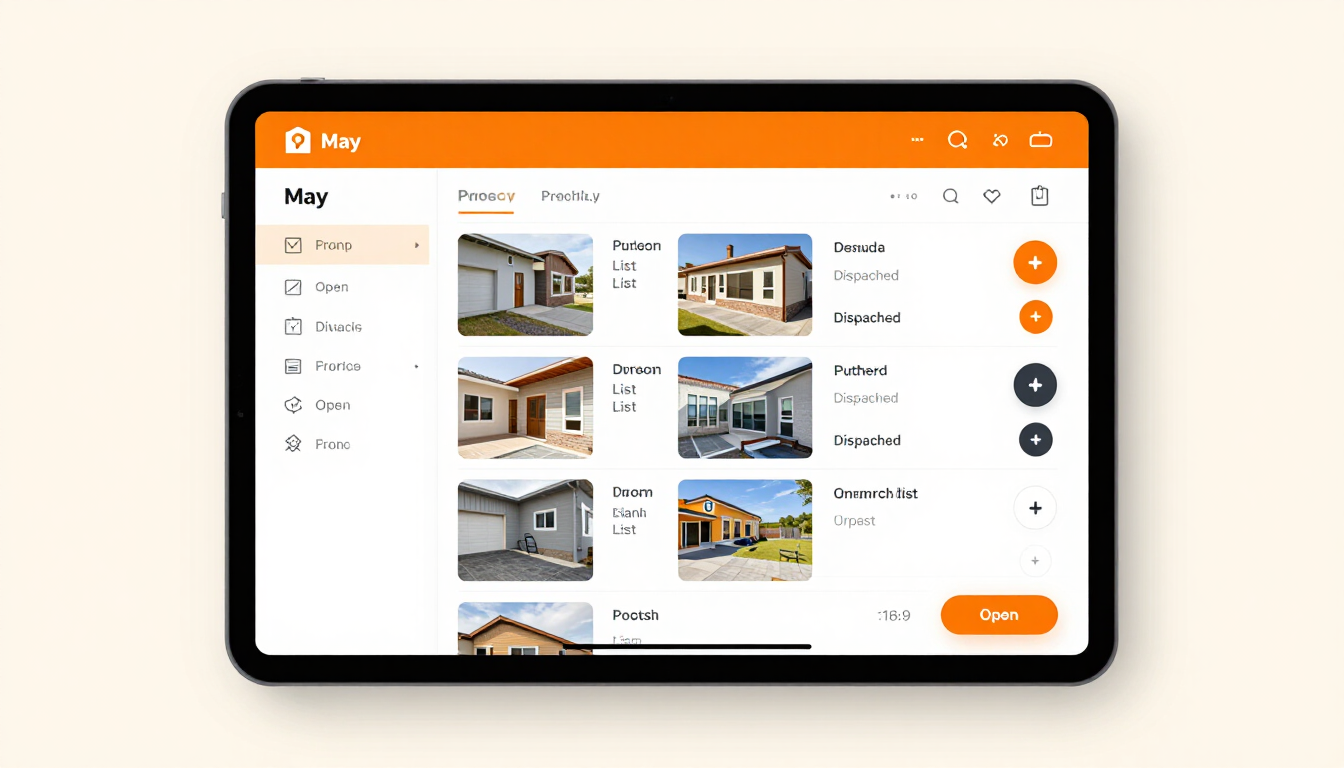
How QuickPunch runs a punch list, step by step
1. Capture the deficiency on site
Open QuickPunch on your phone and tap “Add item.” Snap a photo of the defect — a scratched cabinet, a misaligned door, missing caulk — and tag it to the room. Add a one-line note so the sub knows exactly what to fix. The whole capture takes under 30 seconds, right where you find the issue.
2. Assign to the responsible trade
Tag the item to the subcontractor who owns the fix — electrician, painter, trim, HVAC. Set a priority and a due date on critical items so they surface first. Room and location tags keep the list organized the way you actually walk the unit.
3. Dispatch by email and text
Tap “Send to subs” and QuickPunch dispatches every open item to the right subcontractor at once — by email and text message, with the photo, room, priority, and due date attached. Subs open a simple link on their phone; they never need a QuickPunch account or app.
4. Receive completion photos
When a sub finishes the work, they open the link and submit a completion photo. You get notified instantly and can compare the before and after side by side — without driving back to the site to verify.
5. Track close-out to done
Live dashboard counters show total items, completed, percent complete, inspected, late, and due soon — updating in real time as subs close work. When every item is photo-verified, the project is ready for owner sign-off and retainage release.
What you get
- Log deficiencies with a photo and a room in under 30 seconds
- Dispatch every open item to the right sub by email and text in one tap
- Subs submit completion photos through a simple link — no account needed
- Live counters track every project from open to close-out
Explore more of QuickPunch
- Plans & Pricing — Compare Free, Solo, Foreman, and Crew plans.
- Punch List Guide — Step-by-step walkthrough of a construction punch list.
- Free Templates — Printable punch list checklists for 8 free checklists.
- Material Calculators — Estimate materials on the job.
Get Started Free — Free account: 1 project, up to 25 items, no credit card required.
Related resources
- Punch List Software Pricing — Free, Solo, Foreman, and Crew plans from $0–$39/month.
- Construction Punch List Guide — Step-by-step walkthrough from site walk to verified close-out.
- Free Punch List Templates — Printable checklists for 8 free checklists — no sign-up required.
- QuickPunch vs. the Competition — Which punch list app actually fits your crew.